
Your new place deserves the best

Power your outdoor game nights or movie marathons with reliable Internet and the best in live TV entertainment.

Home/Internet + TV/Internet + TV packages

Shop EPICO packages

Purchase online and get free installation.
Choose the Internet speed you need

Why shop online?

Unbox. Install. Connect. It's that simple!

Free installation—online only.

Save time - shop here for instant top deals.

Easy-peasy sign up, let's go.

Add Premium channels for more content you’ll love

Crave

Enjoy the best series, movies and more.

Crave with STARZ

Enjoy the best series, movies and more.
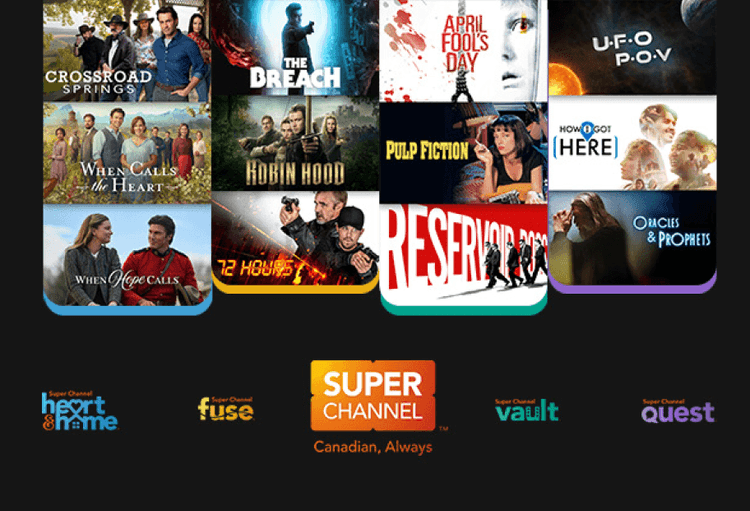
Super Channel Premium

Watch Hit Movies and Must-See Series on Super Channel!

Watch what you want, on whatever device you want

Choose from a ton of channels

Customize your channel lineup by selecting your favourites.

See all channels

Add even more à la carte

Get more of what you want by choosing additional channels, one by one.

See Premium packs

Get sports channels and packages

Whether you love watching basketball, hockey, soccer, or whatever else, we have the sports channels for you.

See sports packs

Take full control of all your screens

Download the EPICO app on your devices and watch wherever you want, on your terms.

Discover the app

Our EPICO packages allow you to:

Access On Demand and PPV titles

Get instant access to all the latest movies, catch up on buzz-worthy shows and enjoy Pay-Per-View events.

Watch on your screen of choice

Enjoy live or recorded content on your TVs, mobile devices, streaming devices and computers from the comfort of your home or on the go with the EPICO app.

Manage your account with ease

Modify your TV channels, pay your bills and more on My Account. Plus, if you have any questions, a local Cogeco rep is always ready to help.

Get even more

You can upgrade your package to include unlimited recording space and our fastest speed of up to 1 Gbps.

Your questions about EPICO, answered

If you’re subscribed to EPICO, you can download our app on compatible devices to enjoy the EPICO experience in more places in your home, and even on the go.

You can download the app on the EPICO app on the following devices and log in with your My Account username and password:

Good to know: 

  • You can use your EPICO service on up to 5 devices at the same time, in addition to your EPICO 4K Boxes. If you try logging in to an additional device after you’ve reached your device limit, you’ll be prompted to log out of one of your 5 devices. Learn more about managing your EPICO devices.
  • Devices are not sold by Cogeco.

Apple TV

  • Compatible OS: tvOS 17 or later
  • Supported Models (examples but not limited to):
    • Apple TV HD - 4th gen
    • Apple TV 4K - all generations
  • How to get it: Search for "Cogeco EPICO" in the App Store on your Apple TV.

Roku

  • Compatible OS: Roku OS 12 or later
  • Supported Models (examples but not limited to): 
    • Roku Stick - Roku Streaming Stick, Roku Streaming Stick Plus, Roku Streaming Stick 4K
    • Roku Box - Roku Ultra, Roku Express, Roku Premiere
    • 4K Roku TV
    • Note: Although older OS versions might function, they may not be fully compatible. Not all devices are supported.
  • How to get it: Add the EPICO channel from the Roku Channel Store.

iPhone or iPad

  • Compatible OS: iOS/iPadOS 17.0 or later
  • Supported Models (examples but not limited to):
    • iPhone - 11 or later
    • iPad - 8th gen or later
    • iPad Pro - all generations
    • Note: Although older OS versions might function, they may not be fully compatible.
  • How to get it: Download the "Cogeco EPICO" app from the App Store.

apple-download.jpg

Android phone or tablet

  • Compatible OS: Android 14.0 (Upside Down Cake) or later
  • Supported Models (examples but not limited to):
    • Samsung Galaxy - S21, S22, S23, A13, A23, A53
    • Samsung Tab - S8, S9, S10
    • Google Pixel - 7, 8, 9
    • Note: Although older OS versions might function, they may not be fully compatible.
  • How to get it: Download the "Cogeco EPICO" app from Google Play on your device.

google-play-store-download-en.jpg

Samsung TV

  • Compatible OS: Tizen OS 5.5 or later
  • Supported Models (Examples but not limited to): 
    • Most models made from year 2019 or later with Tizen OS
    • QTQ60, QTQ62, QRQ900B, QRQ90, QBQ900, QBQ850
    • G65B, G70B, K3LDCU, LS03C QCQ80, QAQ9X, QAQ9D
    • Note: Although older OS versions might function, they may not be fully compatible. Not all devices are supported.
  • How to get it: Search for "Cogeco EPICO" in the app store on your TV.

Amazon Fire

  • Compatible OS: Fire OS 6 or later
  • Supported Models (Examples but not limited to):
    • Fire TV Stick - Lite, 3rd gen, 4k, 4k Plus, 4K Max (2nd gen)
    • Fire TV Cube - 3rd gen
    • FireTV - Omni, Toshiba 4k UHD, Insignia, Pioneer
    • Note: New devices with VegaOS are not compatible.
    • Note: Although older OS versions might function, they may not be fully compatible. Not all devices are supported.
  • How to get it: Search for "EPICO"  in the Amazon Appstore on your FireTV device.

Computer

  • Recommended Browsers:
    • Google Chrome - Version 140 or later (Windows 10 or later, or Mac OS Sonoma 14 or later)
    • Microsoft Edge - Latest versions
    • Other browsers like Firefox and Safari may work but may not not fully compatible.
  • How to get it: No app download required. Visit epico.cogeco.ca and log in with your My Account credentials to start watching.

You can connect any accessories that are compatible with Android TV to your EPICO PVR, such as a game controller, keyboard or other Bluetooth accessories. You can also add storage for apps using a USB key. 

Make sure the accessory is compatible with Android TV before purchase.

Pairing Your Bluetooth Devices

To add a device:

  1. Open Settings.
  2. Select Android TV Settings.
  3. Select Remotes and accessories.
  4. Select Add accessory.
  5. Put the device in pairing mode.
  6. When the device appears on the screen, select it to complete the pairing.

We have 2 models of EPICO remote. Choose your model below or check out our useful shortcuts for more info on popular functions.

RC-339 EPICO remote

mceclip0.png
  1. power - Turn your EPICO 4K box on or off
  2. record
    • Press once to record a single episode or movie
    • Press again to record all episodes of a series or to cancel a one-time
      recording
    • Press a third time to cancel a series recording
  3. guide - Display the programming guide
  4. films - Display all films available on Video on Demand
  5. home - Display the main EPICO menu
  6. live TV - Return to live TV from anywhere else on the EPICO interface
  7. Google Assistant - Talk to Google
  8. channel (up/down) - Change channels or browse the programming guide
  9. option - Access EPICO settings or guide/gallery filters
  10. last - Go back to the previously watched channel while watching live TV
  11. keypad - Enter numbers
  12. mute - Mute or unmute
  13. volume (up/down) - Increase or decrease the volume
  14. back - Return to the previous page
  15. navigation arrows - Navigate around the screen while in a menu, or fast-forward and rewind while playing a program
  16. Netflix - Access the Netflix app
  17. playback functions - Control playback: pause, play, rewind, skip back 10 seconds, and skip forward 30 seconds
  18. info - Access additional information about your programs
  19. TV power - Turn your TV on or of
  20. input - Select the input for your TV

RC-466 EPICO remote

RC-466_EPICO_Remote_-_labeled.png
  1. power - Turn your EPICO 4K Box on or off
  2. DVR - Display your recordings in the DVR Manager
  3. restart - Restart the current program (if it’s an option)
  4. skip - Skip forward 30 seconds or back 10 seconds
  5. settings - Access EPICO settings or guide/gallery filters
  6. guide - Display the programming guide
  7. OK - Select an option while in a menu, or open the playback menu while playing a program, then press a second time to play/pause
  8. live TV - Return to live TV from anywhere else on the EPICO interface
  9. Google Assistant - Talk to Google
  10. channel (up/down) - Change channels or browse the programming guide
  11. APPS - Display your apps
  12. input - Select the input for your TV
  13. last - Go back to the previously watched channel while watching live TV
  14. Netflix - Access the Netflix app
  15. mute - Mute or unmute
  16. volume (up/down) - Increase or decrease the volume
  17. home - Display the main EPICO menu
  18. back - Return to the previous page
  19. navigation arrows - Navigate around the screen while in a menu, or fast-forward and rewind while playing a program
  20. info - Access additional information about your programs
  21. record
    • Press once to record a single episode or movie.
    • Press again to record all episodes of a series or to cancel a one-time
      recording.
    • Press a third time to cancel a series recording.
  22. TV power - Turn your TV on or off

Useful Shortcuts

Use your EPICO remote to its full potential by using these shortcuts:

 

Remote home menu button
The home button: Brings up the EPICO menu. Use it to easily return to EPICO, even when you are in another application like Netflix or YouTube.


Remote Google assistant button
The Google Assistant button: Use it for voice searches or commands, including many of the non-TV features available with Google Assistant , such as "add milk to my shopping list".


Remote option button
The option or settings button: 

  • Press OPTION or settings to access the filters at the top of the programming guide or when you’re browsing a list of content. From there, you can filter the content according to your subscriptions, the category, or the video quality.
  • Press OPTION or settings while watching Live TV or a recording to quickly access the Settings menu.
 

Remote CH up and down buttons
The CH up and down buttons: When browsing in the guide, you can use these buttons to jump to the next page of channel listings.


mceclip3.png

The Guide button: Press the Guide button to open the On Now guide, then press the Right arrow button to open the Full Guide.


mceclip2.png

Navigation Arrows:

  • While watching Live TV, press the Up or Down button to access the On Now guide. You can then change channels in the On Now guide using Up/Down or change the time using Left/Right.
  • While watching Live TV, recordings or on-demand content, press OK and then the Down button for more navigation options (Restart, Skip, Closed Captioning, Video Quality, Audio Language and Described Video).
  • You can also use the Left/Right buttons to rewind and fast-forward, then OK to resume playing.

Parental controls allow you to restrict access to content with 3 different locks:

  • Content lock: limits access by content rating
  • Purchase lock: prevents being able to purchase or rent content
  • Adult lock: blocks and hides adult-rated content

See below for steps to set up parental controls on different device types:

Good to know:

  • Separate PINs can be set for each type of lock.
  • The parental controls must be activated on each device, but the PIN required for each type of lock will be the same across all devices.
  • If the PIN is entered incorrectly 5 times, you won't be able to access your parental controls for 30 minutes.

Setting up parental controls on your EPICO 4K Cloud PVR

  1. Select Settings from the main menu.
  2. Select Parental Controls.
  3. Select the parental controls you want to manage: Content locks, Purchase locks or Adult locks.
  4. Set up a personalized PIN or use the default PIN 0000 if prompted.
  5. Choose your preferred settings.

Setting up parental controls on a mobile device

  1. Select the Profile & Settings icon at the top right.
  2. Select Content locks.
  3. Set up a personalized PIN or use the default PIN 0000 if prompted.
  4. Choose your preferred settings.

Setting up parental controls in a browser

  1. Select Settings.
  2. Select the parental controls you want to manage: Content locks, Purchase locks or Adult locks.
  3. Set up a personalized PIN or use the default PIN 0000 if prompted.
  4. Choose your preferred settings.

Setting up parental controls on a streaming device

  1. Select Settings from the left menu.
  2. Select Content locks.
  3. Set up a personalized PIN or use the default PIN 0000 if prompted.
  4. Choose your preferred settings.

Good to know: If you delete the EPICO app on your device and reinstall it, parental controls will need to be set up again.

The Restart feature lets you go back to the beginning of a show or watch a program that recently aired, even if you didn’t record it. Select one of the options below for different ways to restart a live program or find something to watch.

Note: Restart is only available on certain channels. If a show or movie has already started and you see the Restart icon while browsing the guide, the Restart option is available. This is typically available for 72 hours but may vary by channel.

Restarting a show that’s playing live

  1. Go to the channel showing the program you want to watch.
  2. Press OK on your EPICO remote or tap the screen on a mobile device to bring up the playback menu.
  3. Press the down arrow ▼ for more options if needed.
  4. Select the Restart icon and it’ll play from the beginning.

Good to know:

  • On the mobile app and streaming devices, when you start watching a program that has the Restart feature available, you’ll also see a Restart from the beginning option that you can select.
  • Our latest remote model also has a restart button for quick access. Just press it while you’re tuned to the channel.

Restarting a show from the guide

  1. Press guide on your EPICO remote or select TV Guide from the menu. Learn more about ways to access the TV Guide.

    • Note: On an EPICO 4K Cloud PVR, press the right arrow button from the quick guide to access the Full Guide.

  2. Use the left and right arrows to scroll to different times and dates, allowing you to see what aired up to 3 days ago. You can also filter by date by selecting TODAY at the top of the guide.

  3. If you see the Restart icon next to a title, it’s available to restart.

  4. Select the program and it’ll play from the beginning.

Note: On some channels, when you restart a program that isn’t playing live, fast-forward and skip won’t be available.

Want to shop with a local agent or find a store in your area?

Chat with an agent

We’re here to help you and suggest products and services, promotions and answer questions.

Find a Cogeco store

Do you prefer shopping in person? We’re happy to serve you at your local Cogeco store.

Locate your nearest store

Speak with a sales agent

We're here to help you place an order or add services.

1-866-261-4447
GENERAL RESTRICTIONS AND LEGAL INFORMATION FOR MOBILE SERVICES ONLY (Residential services legal information available below)


Mobile

¹Network: Where mobile services are available. Check our Service Availability tool to see if your address is eligible for service. Once subscribed, mobile services are accessible in Cogeco’s and its third party network partners’ coverage areas. 5G available where technology permits, on compatible devices. BYOP refers to 'Bring your own phone'. Customer devices will be subject to a device compatibility test to ensure our service will work.

²Limited-time offers: First-line discount with application of bundle ($10/month) and pre-authorized debit (PAD) ($10/month) discounts for eligible customers. If the Internet service or PAD conditions are no longer met during the promotional period, the respective discounts will be removed from the account.

The first-line discount applies only to monthly rate plan charges, for up to 12 consecutive months, on select mobile plans. Following the promotional period, standard rate plan monthly charges will apply. This discount is only applicable to the first line.

Additional services, features and add-ons are not included and regular charges will apply, including applicable taxes.

This limited-time offer is only for active Cogeco Internet customers, where Cogeco Mobile is available. Cogeco reserves the right to modify or withdraw this offer at any time, without prior notice.

Plans: ³Rollover data plans include unlimited nationwide calling and texting to numbers within Canada (calls and texts to premium numbers will be blocked), along with a specified data allowance that can be rolled over to the next month, as follows: A - Starting in your first full billing month after Service activation, any data you have not used by the end of the month will be rolled over to the next month. B - The maximum amount of data you can rollover at any time is equal to the monthly data included in your plan. C - Your rollover data will expire if you change plans. D - Unused data included in, Data Top-Up, and Bonus Data Top-Up cannot be rolled over. If you run out of data, our worry-free data feature prevents you from incurring pay-per-use data charges at home or while roaming outside of Canada. Cogeco will notify you by text when you reach 75% and 100% of your data limit and data will be paused when you reach 100% of your data limit.

⁴Talk and text plans provide unlimited nationwide calling and texting to numbers within Canada (calls and texts to premium numbers will be blocked). These plans also allow you to use 10 MB of "accidental" data before a data protection cap is applied. You have the option of removing the data protection cap and using pay-per-use data.

Add-ons:

⁵Additional data valid for current billing cycle only; does not rollover.

⁶Valid for international calls from Canada to selected destination(s). All calls are rounded up to the next full minute.

⁷The International Long Distance Saver reduces the cost of making international calls from Canada. The list of countries included in the International Long Distance Saver and the applicable rates and savings can be found here: https://www.cogeco.ca/en/support/mobile/long-distance-rates. All calls are rounded up to the next full minute.

International roaming:

⁹Cogeco Daily Roam: Cogeco Daily Roam lets you use your monthly plan's text, voice, and data allotment while travelling in the United States for an additional $7/day or in over 60 other countries for an additional $15/day. Visit the Cogeco Daily Roam page at https://www.cogeco.ca/en/mobile/travel for a complete list of countries. You will only be charged the daily rate on the days you place or answer a call, send or receive a message, or use data, while roaming. Each 'day' of Cogeco Daily Roam is 24 hours from when you first place/answer a call, send/receive a message, retrieve voicemail, use data, or activate call forwarding. You can be charged for Cogeco Daily Roam at the applicable rate up to 20 times per billing cycle, after which you may continue using your monthly plan for the remaining days in your billing cycle with no additional Cogeco Daily Roam charges, until your billing cycle renews. Cogeco Daily Roam is active on your account unless you remove it.

¹⁰Pay-per-use (PPU): Roaming pay-per-use rates may vary by destination, as may rounding practices.

Discounts:

¹¹Bundle discount: Flat discount to monthly rate plan charges, applicable to each line in the account. To be eligible for the Internet Bundle Discount you must have an active Cogeco Internet subscription under the same account name, in good standing. If your Cogeco Internet subscription is cancelled, the discount(s) will be removed. Discount(s) will be prorated if added in the middle of a billing cycle.

¹²Pre-authorized debit discount: The pre-authorized debit ("PAD") discount is available to mobile customers who subscribe to an eligible in-market mobile plan and set up monthly PADs. Discount will be applied to your monthly rate plan fee for as long as PAD is active on the account. The PAD discount will apply immediately upon activation of your mobile service but will be removed if you do not set up PAD as a payment method within 30 days. This discount may also be removed if your mobile service is terminated, you change to an ineligible plan, your payment method is expired, or if payment fails. Discount will be prorated if added in the middle of a billing cycle.

¹³Worry-free data:

Worry-free data is applied to your account at the time of activation and prevents you from incurring pay-per-use data charges at home or while roaming outside of Canada. Cogeco will notify you by text when you reach 75% and 100% of your data limit and data will be paused when you reach 100% of your data limit. . For personal and residential purposes only. Photos are for illustrative purposes only.

¹⁴Mobile Device Protection:

Mobile Device Protection is available exclusively to active Cogeco customers in Ontario who are subscribed to an eligible plan with Mobile Device Protection. Phones must have been successfully registered to the Cogeco network, and coverage will become active 30 days after being subscribed to the eligible mobile plan. Repairs for screen damage and malfunctions, and eligible battery issues are covered. Service fees (plus applicable taxes) apply to all approved repairs and replacements. Cogeco reserves the right to modify or withdraw the Mobile Device Protection feature at any time without prior notice.

¹⁵30-day money-back guarantee:

If you are new to Cogeco Mobile and are not satisfied with the service, you have 30 days from the service start date to cancel your service and, so long as you have used no more than 50% of your monthly usage allotment, your monthly fee (or portion thereof) will be waived. If you are a person with a disability, you may use up to 100% of your voice minutes and data included in your plan.

GENERAL RESTRICTIONS AND LEGAL INFORMATION FOR RESIDENTIAL SERVICES ONLY

Limited time offer. Restricted to new customers and former customers who cancelled all of their services more than 6 months ago.

Our network combines optical fibre and coaxial cable. Available where technology permits. For personal and residential purposes only. Visit cogeco.ca for details. Photos are for illustrative purposes only.

Installation

A fee of $130 per technician visit for a standard professional installation will apply. Supplementary installation fees may apply for additional work requested. Pre-authorized debit or credit card payment and service bundling on a single invoice may be required.

A termination fee of up to $75 per service will be charged to customers who cancel their services before the end of the offer period. Termination fees not applicable in Quebec.

With self-install, a fee of up to $80 applies for a technician visit where installation services are required and/or where the issue is not caused by Cogeco (services or equipment).

Internet

Additional charges will apply for exceeding the monthly data transfer capacity (GB) allowed for each specific Cogeco Internet package. See details. Download and upload speeds can vary with Internet traffic, remote peers, the customer’s network configuration, the use of wireless equipment and other factors. See details. All Internet packages include 2 free installations of Cogeco Security services for desktop and/or laptop computers. Cogeco Security GO with unlimited installations for computers, tablets and wireless devices is available at a regular price of $5.99/month. See details. Wi-Fi hotspots provide free and unlimited Internet access to Cogeco subscribers and limited access to non-Cogeco subscribers. See details. ULTRAFIBRE®

Wi-Fi Pods and Wi-Fi extenders require a subscription to an UltraFibre 40 Internet package or higher.

UltraFibre 1 Gig Unlimited : Up to 1 Gbps of total download speed through the combination of multiple devices including at least one wired connection (Ethernet) combined with one or multiple wireless connections to Cogeco’s 1 Gig modem. Up to 940 Mbps download speed can be achieved when connecting to one personal Internet device with one wired connection (Ethernet).

EPICO

Cogeco EPICO service provides combined access to Cogeco TV and Internet services with a subscription to Cogeco TV, an EPICO 4K Box and a minimum subscription to the UltraFibre 60 Unlimited Internet package with a Wi-Fi modem.

Download speed, upload speed, signal and picture quality can vary depending on various factors.

Channel availability may vary by region. Selected TV channels can only be modified once every 30 days. The channel lists for the pre-selected packages cannot be modified. Additional fees may apply for some channels and some channels may count for several choices. Viewing content (live or recorded) is restricted to Canada.

Channel availability for the Restart and Just Missed features may vary according to the content rights and viewing restrictions.

A separate subscription to Netflix® is required.

The EPICO app provides access to the TV channels included in the EPICO package to which the customer is subscribed. Some channels included in the EPICO package may not be available to watch out-of-home due to content rights restrictions. Viewing content is restricted to Canada.

On Demand requires a subscription to the TV package containing the associated digital channel. Purchased movies remain available as long as the customer is subscribed to the Cogeco EPICO service and as long as the title remains available in the On Demand library. Rented movies are available for the duration indicated on the screen.

Beginning November 27th, 2024, all recordings are available for a maximum of 90 days or until the termination of your EPICO service, whichever comes first. By default, older recordings will be automatically removed to match the number of hours in your block. Additional blocks of recording hours may be available to add with certain EPICO packages (up to unlimited recording capacity).

An EPICO package including an EPICO 4K Cloud PVR is required to download and view TV recordings in and out-of-home.

One EPICO 4K Cloud PVR per TV set. Each additional EPICO 4K Box or EPICO 4K Cloud PVR is available at $7 per month.

Television

Cogeco TV service requires the rental of an HD digital receiver with a minimum subscription to the Basic Channels package. Channel availability may vary by region. TV packages and selected channels can only be modified once every 30 days. Additional fees may apply for some channels and some channels may count for many choices. The channel lists of the pre-selected packages cannot be modified. Cogeco On Demand requires a subscription to the TV package containing the associated digital channels. Requirements to watch 4K: (i) a 4K TV and 4K receiver, (ii) a subscription to the SD/HD channels corresponding to the 4K channels. 4K not available with all channels.

Access to the mobile apps requires a subscription to the TV package containing the associated digital channel. The content viewed on mobile apps requires bandwidth, which is included in the customer's Internet or cellular data package. Additional usage fees may apply if the customer exceeds the monthly data transfer capacity (GB) included in his package. Viewing content is restricted to Canada.

TiVo service from Cogeco requires: (i) the rental of a TiVo receiver, (ii) a Wi-Fi modem, and (iii) a subscription to Cogeco Internet and (iv) a TV package. Each additional TV set combined with a TiVo PVR requires the rental of a TiVo HD receiver. Installation charges may apply for additional outlets. Data traffic consumed between the TiVo boxes and the Internet to supply programming information counts towards customer’s Internet usage. Additional usage fees may apply if the customer exceeds the monthly data transfer capacity (GB) included in the package. Viewing content is restricted to Canada. TiVo®. Apple®. YouTube®.

*Premium releases are $24.99

Home Phone

Phone equipment must stay at the same address where it was initially installed in order to allow 911 to associate the call with the correct address in the event of an emergency.

Home Phone equipment

New generation Phone Equipment does not include an external backup battery. Batteries can be purchased separately for certain models (Hitron CODA-4589 and Arris TG3452G) while supplies last. Sagemcom (F@ST3896) equipment does not include a backup battery. See details

Subscription to a Cogeco Home Phone package is required for all long distance plans. Limited to a list of countries predetermined by Cogeco. Additional minutes will be charged at the then current rate, per minute per country, applicable for the remainder of the month.See details. A fee of $0.95 per call for the use of the directory assistance (411) may apply, depending on the phone package.

Since November 30, 2023, people across Canada can call and text 9-8-8, a new three-digit service, for help with mental health and suicide prevention. 9-8-8 is free for anyone in Canada who is thinking about suicide, in emotional distress, or who is worried about someone they know.

New Residential Home
  • Limited-time offer. Some additional fees and conditions apply. Available only to residential Cogeco customers at their newly built residence in specific new construction areas. This offer is limited to new customers. At the end of the offer period, the advertised savings will no longer apply and the then current regular prices will apply. Prices may vary based on the packages available during the offer period. Regular prices may change at any time, but the amount of the savings per month will remain for the duration of the offer period.

  • Available where technology permits. For personal and residential use only. Visit cogeco.ca for details.

5$ discount

*Prices and packages may vary by region. Prices are subject to change at any time. Taxes not included. Available where technology permits. For personal and residential purposes only. A fee of $130 per technician visit for a standard installation will apply. Supplementary installation fees may apply for additional work requested. Pre-authorized debit or credit card payment may be required. **This rebate offer may be combined only with selected Cogeco offers. Offers and permitted combinations are subject to change at any time.